
In this tutorial I am going to show you how to install BackTrack 5 R3 in a virtual machine. This is really simple do if you know the very basic knowledge about virtual machines. So, let us get started.
What You’ll Need
You will require simply two things; BackTrack OS and VMware Player.
BackTrack OS:
install backtrack 5 R3 on usb
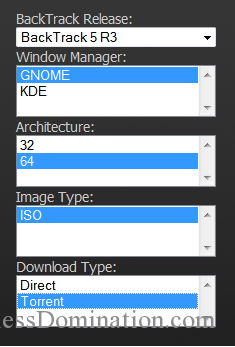
- Just go the link and click Download.
- In Select Require Version select BaclTrack 5 R3
- In Window Manager i would prefer to select GNOME (Coz it looks clean and nice) but you can select KDE. (They are the flavors of Backtrack)
- And in Architecture Choose 32 for a 32-bit architecture and vice-versa
- In Image Type select ISO
- And At last you can select your preferred download type. Usually I use Torrent.
Although there are other virtual machines, I would recommend you to use VMware Player which is free and is compatible with Windows. There is also a paid version of VMware known as VMware Workstation available which have some extra features. But everything we need is available in VMware Player. The process in both these software are almost same.
To Download VMware Player go to this link.
If they ask you to register in their site to download the software then do it as its free. After you have downloaded the software double click it and install it . Just click next, next, continue and so on and the installation will be complete.
Installation
Step 1: Open VMware Player

How to install BackTrack 5 R3 in Vmware

How to install BackTrack 5 R3 in Vmware
Step 4: In the Guest Operating System select “Linux” and in version select Ubuntu 32-bit for 32-bit Architecture BackTrack and Ubuntu 64-bit for 64-bit Architecture BackTrack and click Next.

How to install BackTrack 5 R3 in Vmware

How to install BackTrack 5 R3 in Vmware

How to install BackTrack 5 R3 in Vmware
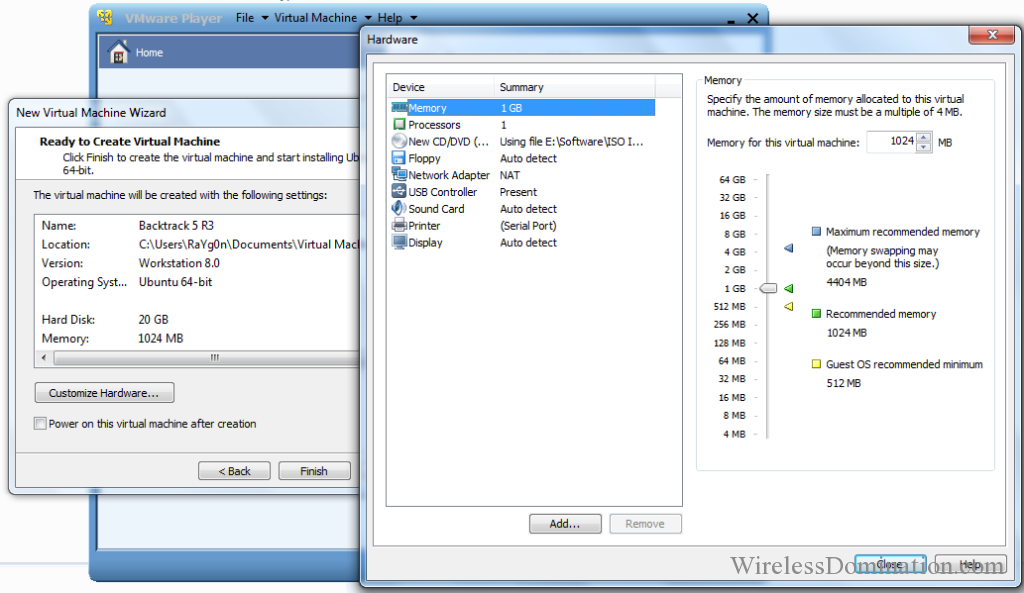
How to install BackTrack 5 R3 in Vmware
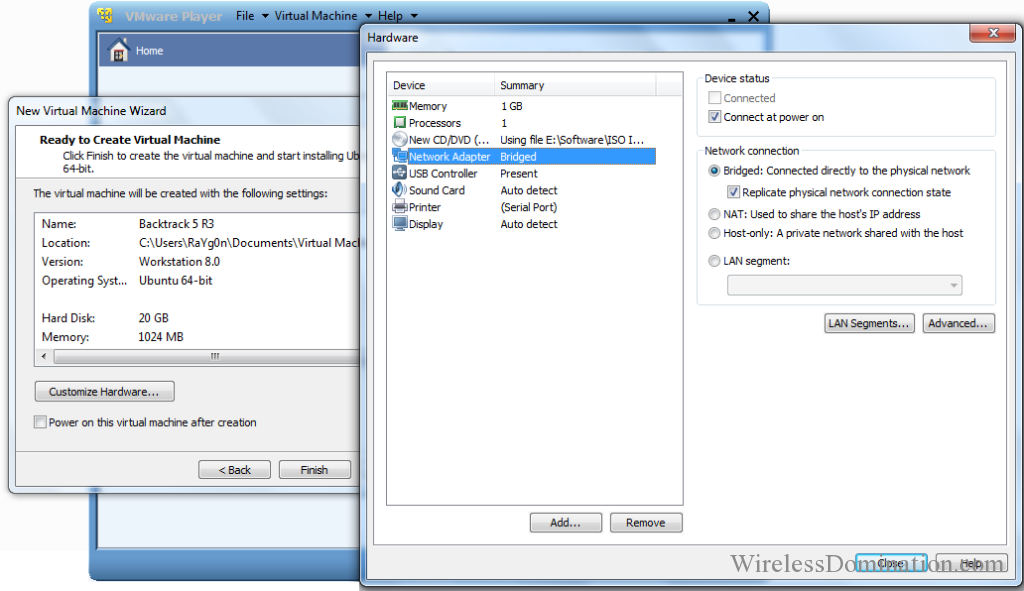
How to install BackTrack 5 R3 in Vmware

How to install BackTrack 5 R3 in Vmware

How to install BackTrack 5 R3 in Vmware

How to install BackTrack 5 R3 in Vmware

How to install BackTrack 5 R3 in Vmware

How to install BackTrack 5 R3 in Vmware
Step 15: So, in Prepare disk dialog box also leave everything as it is and click forward again.

How to install BackTrack 5 R3 in Vmware

How to install BackTrack 5 R3 in Vmware

How to install BackTrack 5 R3 in Vmware

Step 18: And then after the Reboot a window will appear which will prompt you for you BT username and password. So, for this type the following italic words in each of the the following prompt:
bt login : root
Password : toor
They are the default username and password but you can change them later if you want.

How to install BackTrack 5 R3 in Vmware
The tutorial was quite long but i made it out like this so that you get everything clear. You can also install other Operation Systems like Ubuntu, Windows and even MAC OS in VMware.


No comments:
Post a Comment